
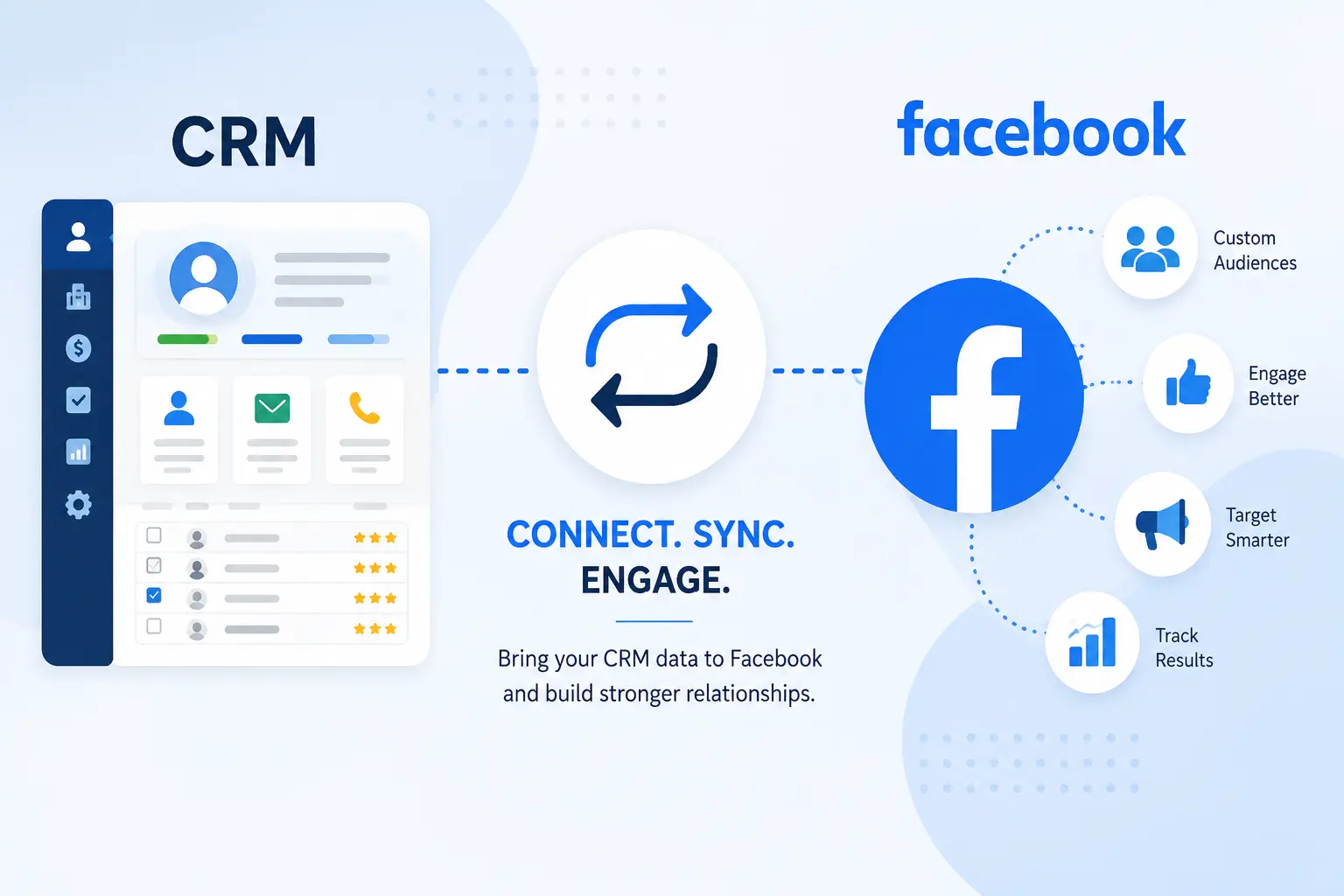
CRM to Facebook: How to Connect Your CRM (3 Easy Ways)

Connecting a CRM to Facebook lets Facebook Lead Ads flow straight into your CRM instead of you downloading them by hand. There are three main ways to do it. You can use Meta’s built-in CRM setup, connect through Zapier or Make, or send your CRM contacts back to Facebook using Custom Audiences and the Conversions API. The right method depends on your CRM and how fast you need new leads to show up.
Facebook only keeps your Lead Ads submissions for a limited time before it deletes them. Many people cite this window as 90 days. If your CRM is not connected, a lead can disappear before your sales team ever sees it.
Businesses that run Facebook Lead Ads get new leads right inside the app. But that data does not move into a CRM by itself. This guide covers the three real ways to connect a CRM to Facebook: Meta’s built-in setup for Lead Ads, a Zapier or Make connection for CRMs that do not connect on their own, and sending CRM data back to Facebook for Custom Audiences and the Conversions API.
What Does “Connecting a CRM to Facebook” Actually Mean?
When people search for CRM to Facebook, they usually mean one of two things.
The first is Facebook to CRM. Leads from Facebook Lead Ads, messages from Facebook Messenger, and comments on your Facebook Page all flow into your CRM as new contacts. This is what most people want when they use this phrase.
The second is CRM to Facebook. Your CRM sends data back to Facebook instead. You might upload a list of contacts to build a Custom Audience for ads. Or you might connect the Conversions API so Facebook learns which leads turned into real sales.
Meta, the company that owns Facebook, calls the first option CRM Setup. You will find it inside a tool called Instant Forms in Meta Business Suite. A full Facebook CRM integration often uses both directions, not just one. If your CRM already has a native integration with Meta, this whole process only takes a few minutes.
Want to know what a CRM does before you connect one? Our guide to core CRM features breaks down the basics.
Why Sync Your CRM With Facebook in the First Place?
Syncing keeps your Facebook leads from getting stuck in one place. Facebook only stores Lead Ads data for a short time, and studies show that fast follow up wins far more deals than slow follow up. A live sync between your CRM and Facebook helps your team act while a lead is still warm.
Speed matters more than most people think. This idea is often called speed-to-lead, and it is one of the biggest factors in whether a lead turns into a sale. A well known study from MIT and InsideSales.com found that a lead contacted within 5 minutes is 21 times more likely to turn into a sale than one contacted after 30 minutes. Research from Harvard Business Review found that firms who reach out within the first hour are close to 7 times more likely to qualify that lead at all.
Facebook Lead Ads are not cheap either. A 2025 report from WordStream found the average cost per lead on Facebook rose almost 21 percent in one year, landing at $27.66. When leads cost that much, losing even a few to a slow or broken lead sync adds up fast.
A CRM to Facebook connection fixes this by moving new leads into your CRM the moment they come in. No one has to remember to check the Leads Center or download a CSV file by hand.
Curious how this pays off in real numbers? Our page on CRM ROI walks through the math.
How Do You Connect a CRM to Facebook? (3 Ways)
There are three main ways to set up a Facebook Lead Ads CRM integration. Which one you use depends on your CRM and what you want to happen with the data.
Method 1: Meta’s Native CRM Setup for Lead Ads
This is the easiest method if your CRM shows up in Meta’s own list.
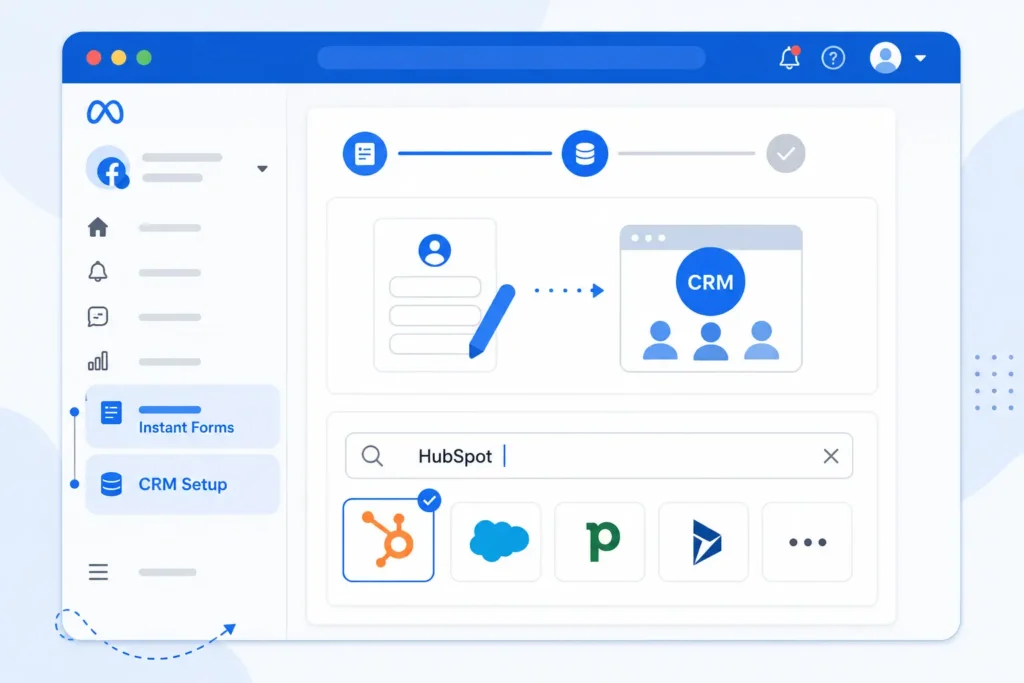
- Go to your Facebook Page and open Meta Business Suite.
- Click All Tools, then choose Instant Forms.
- Look for the CRM Setup section and type in the name of your CRM. For example, you might type HubSpot or Salesforce.
- If your CRM appears, you will see one of two options: Connect from Website or Connect.
- Connect from Website sends you to your CRM provider’s own page to finish the setup.
- Connect (through Zapier) starts the Zapier flow instead, which we cover next.
Once this is set up, a true Facebook Lead Ads integration is in place. New leads from your forms should start showing up in your CRM without any extra steps.
Method 2: Connecting Through Zapier or Make
If your CRM does not have a direct listing, or you picked the Connect (through Zapier) option above, you will need to build the connection yourself. This is also the best route if you want to connect Facebook leads to CRM tools that are not on Meta’s list at all.
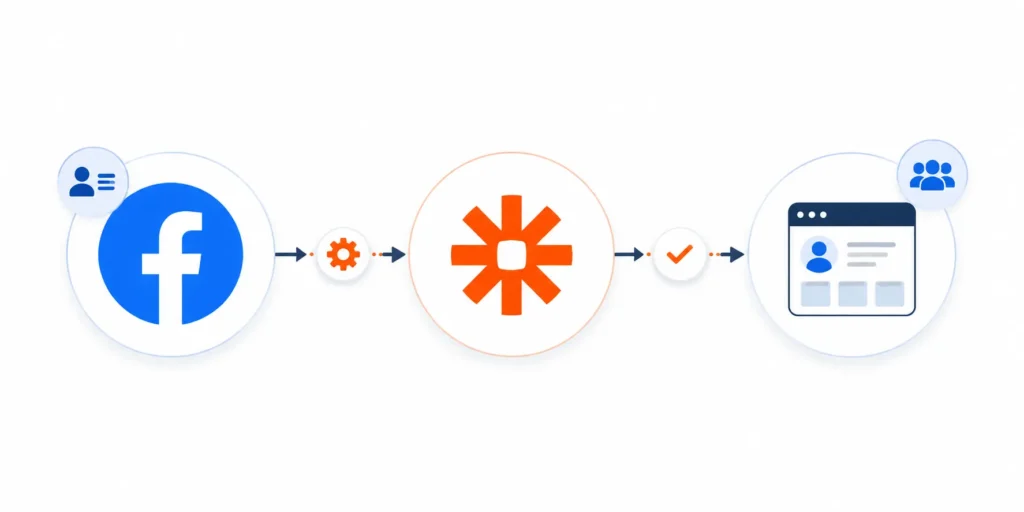
Here is how it works with Zapier:
- Create a free Zapier account if you do not already have one.
- Start a new Zap and choose Facebook Lead Ads as the trigger app.
- Pick the Facebook Page and the lead form you want to pull leads from.
- Test this step. Zapier will pull in a real lead so you can check the data.
- Choose your CRM as the action app, then pick an action like Create Lead or Create Contact.
- Match each field from your Facebook form to the right field in your CRM. This step is called field mapping.
- Test the full Zap, then turn it on.
Make, formerly called Integromat, works in a similar way but shows your workflow as a visual map instead of a simple list of steps. It is a solid pick if you want more control over complex, multi-step automations. Our guide to CRM integration tools compares Zapier and Make side by side.
Method 3: Sending CRM Data Back to Facebook (Custom Audiences & Conversions API)
So far we have covered leads moving from Facebook into your CRM. But data can flow the other way too.
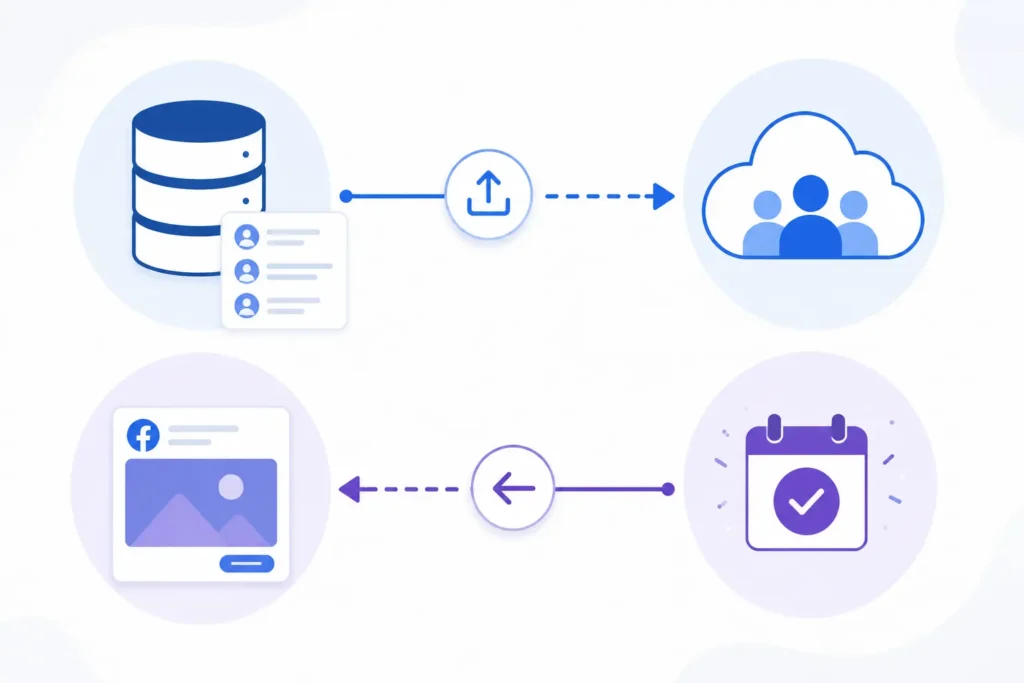
A Custom Audience lets you upload a list of contacts from your CRM straight into Facebook. Facebook matches those contacts to real accounts, so you can show ads to your existing leads or customers, or build a lookalike audience based on them.
The Conversions API, often shortened to CAPI, sends events from your CRM back to Facebook. For example, when a deal closes in your CRM, that event can tell Facebook this lead became a paying customer. CAPI is often used alongside the Meta Pixel to keep ad tracking data accurate even when browser tracking gets blocked. Over time, this helps Facebook’s ad system find more people who look like your best customers, not just people who filled out a form.
Setting up CAPI usually takes more technical work than the other two methods. It often needs a developer or a connector app built for your specific CRM.
Setting Lead Access Permissions in Meta Business Suite
If your Facebook Page has custom permission settings, connecting your CRM is not always enough on its own. You also need to set the right lead access permissions so your CRM can actually see new leads.
Here is how to check and fix this:
- Open Meta Business Suite and select your business account.
- Go to Settings, then click More Business Settings.
- Under Integrations, click Lead Access.
- Click Assign CRMs.
- Find the CRM you just connected and confirm the connection.
Once this is done, your CRM should have full access to new leads as they come in. Skipping this step is one of the most common reasons leads stop syncing even after everything else looks set up correctly.
Which CRMs Have Native Facebook Integration?
Several major CRMs show up inside Meta’s CRM Setup menu with a direct or Zapier based connection, including HubSpot, Salesforce, Zoho CRM, and Agile CRM. The right choice depends on which CRM you already use and whether it appears in that search list.
Picking the best CRM for Facebook leads is not about finding one perfect answer. It is about checking whether your CRM already supports the connection, and how deep that support goes.
Capterra research found that 36 percent of CRM buyers name integration with other tools as one of their top reasons for picking a CRM. Facebook support is often part of that decision.
Here is a quick look at how some popular CRMs handle a CRM with Facebook integration:
| CRM | Shows Up in Meta’s CRM Setup | Facebook Lead Ads | Custom Audiences / CAPI | Notes |
| HubSpot | Yes | Yes | Yes, through the Ads tool | Free plan supports basic lead sync |
| Salesforce | No direct listing, use Zapier or another connector | Yes, through a connector | Yes, through outside tools | Common connectors: Zapier, LeadsBridge |
| Zoho CRM | Yes, through Zoho Social or LeadChain | Yes | Yes, through a Conversions API connector | May need Zoho Social for some features |
| Pipedrive | Through Zapier | Yes | Limited | No direct listing confirmed |
| Agile CRM | Yes, built-in widget | Yes | Limited | Matches contacts to Facebook profiles |
| Smaller or niche CRMs | Check the CRM Setup search first | Usually through Zapier or Make | Varies | Not being listed does not mean it is impossible |
Still choosing a CRM and Facebook is a big part of your plan? Our guides to CRM for small business and free CRM options can help you narrow things down.
What Happens If You Don’t Connect Your CRM to Facebook?
Leads sit in Facebook’s Leads Center until someone exports them by hand, and Facebook only keeps that data for a set amount of time before deleting it. Combined with how much slower manual follow up tends to be, an unconnected CRM can turn paid leads into wasted ad spend.
Without a connection, every new lead has to be downloaded as a CSV file and uploaded to your CRM by hand. This takes time, and time is exactly what you do not have with a fresh lead.
Remember, Facebook does not keep this data forever. Once that window passes, an unclaimed lead is simply gone.
There is also a real cost tied to slow response times. As we covered earlier, leads contacted within 5 minutes are far more likely to convert than leads contacted after 30 minutes. Manual exports almost always take longer than that.
A report from Sopro also found that more than half of sales leaders say disconnected systems slow down or block good decisions. A CRM and Facebook that do not talk to each other is a small but common example of this exact problem.
Common Problems When Connecting a CRM to Facebook (and How to Fix Them)
Even a good setup can run into trouble. Here are the problems people run into most, and how to fix each one.
Leads stop syncing. This is almost always a permissions issue. Go back to the Lead Access steps above and check that your CRM still has permission to view new leads. Also check that the Page admin who set up the connection still has access.
Your CRM does not show up in the CRM Setup search. This does not always mean it is unsupported. Try the Zapier or Make method instead before you give up on a direct connection.
Duplicate leads show up in your CRM. This usually happens when the same lead fills out a form more than once. Set up matching rules in your CRM, or use the Find or Create step in Zapier, so it checks for an existing contact by email or phone before making a new one.
New leads take a while to appear. Native connections often only sync every 5 to 15 minutes, sometimes even less often. If speed matters for your business, a Zapier trigger or a tool built just to sync Facebook leads to CRM systems in real time usually moves faster.
A Zap stops working with no warning. Zapier turns off a Zap after it fails several times in a row. Check your Zap history every so often so you catch this before it costs you leads.
Your Custom Audience match rate is low. Facebook can only match a contact if the data lines up closely enough. Include more than one piece of contact info per person, like both email and phone number, to improve your match rate.
Final Thought
Connecting a CRM to Facebook is not one single feature. It is a mix of native tools, connector apps, and a bit of setup work that depends on which CRM you use. Once it is running, this small piece of marketing automation can save your team hours every week and stop good leads from slipping away.
Every CRM handles this a little differently, and Facebook’s own menus change more often than most people expect. If you are still not sure whether your CRM supports this, or which method fits your setup best, we do not sell a CRM. That means we have no reason to push you toward one tool over another. If you want a straight, honest answer about your specific setup, reach out to us, and we will help you sort it out.
Frequently Asked Questions
Is connecting a CRM to Facebook free?
Meta’s own CRM Setup tool and lead access permissions do not cost anything. Zapier and Make offer free plans with limits, and some CRMs charge extra for their own automation features. Your total cost depends on which tools you already use.
Why aren’t my Facebook leads showing up in my CRM?
This is usually caused by a permissions problem, a Zap that stopped running, or a lead form that changed and broke the field mapping. Check your lead access permissions first, then test the connection with a new sample lead.
Can I connect Facebook to more than one CRM at once?
Meta’s native CRM Setup usually connects one CRM per lead form. If you need to send leads to more than one system, Zapier or Make can route the same lead to several places at once.
Does Facebook delete leads that are never synced?
Yes. Facebook stores Lead Ads submissions in the Leads Center for a set amount of time, often cited as 90 days, before deleting them. You need a CRM connection or a manual export before that window closes.
Can I send my CRM contacts to Facebook instead of the other way around?
Yes. This works through Custom Audiences, where you upload a contact list for ad targeting, or through the Conversions API, which sends events like a closed deal back to Facebook to improve ad results.
Do I still need Zapier if my CRM already shows up in Meta’s CRM Setup list?
No, not always. A direct listing lets you connect without any outside tool. Some people still use Zapier or Make anyway, since it lets them send leads to more than one place at a time.
What is the difference between Facebook Lead Ads and Facebook Messenger integration with a CRM?
Facebook Lead Ads collect form submissions through Instant Forms. Facebook Messenger integration captures ongoing conversations instead. Both can feed data into your CRM, but they use separate setup steps.